
Want to make your review requests stand out? Customizing them in your Olly Olly app is a quick way to get more responses and better reviews. Just follow these simple steps:
Step 1: Open your business settings
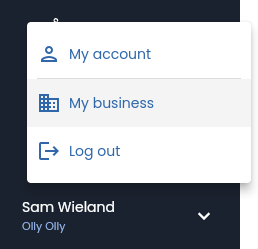
Click your name and business name in the bottom left corner, then select “My Business.”
Step 2: Go to “Review Requests”
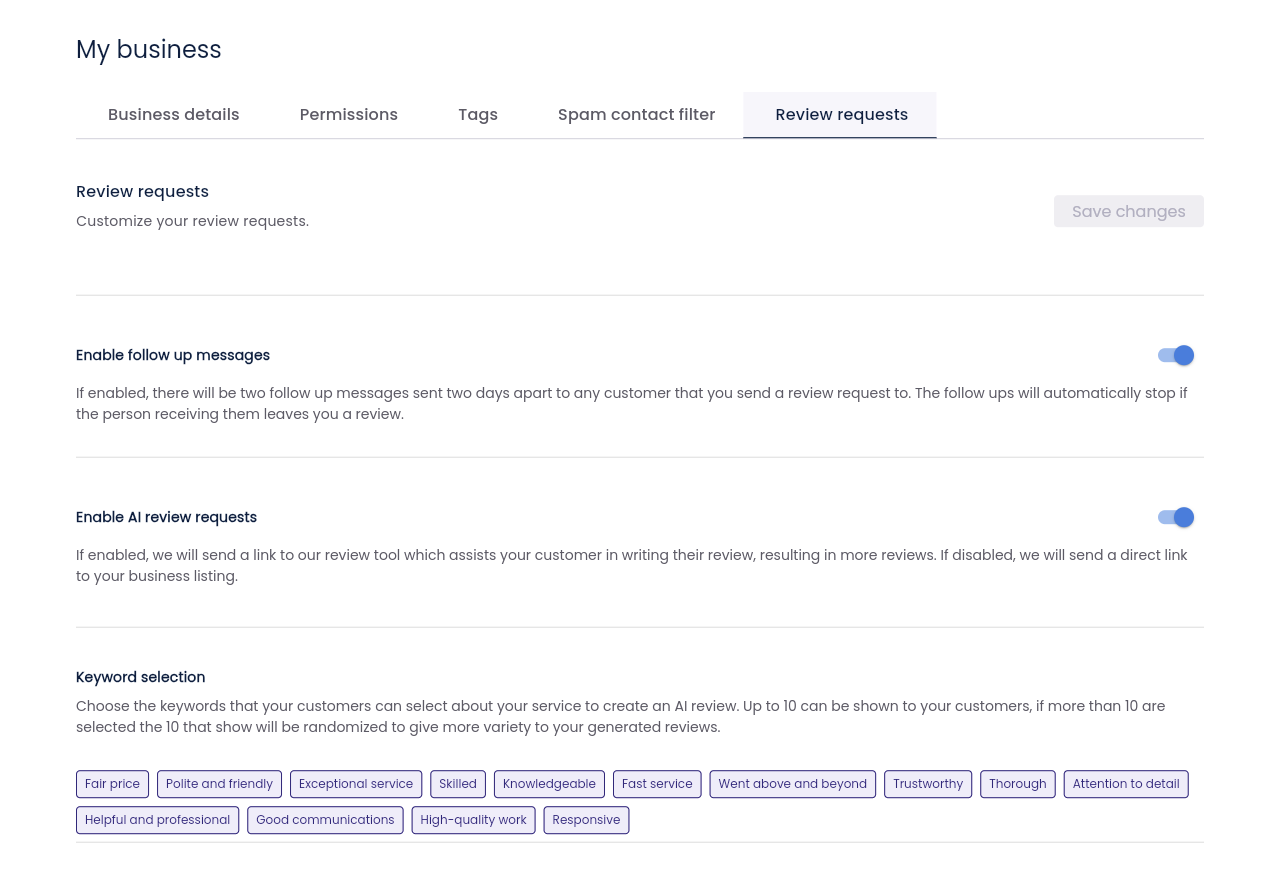
Navigate to the “Review Requests” tab to see all your options.
Step 3: Turn follow-up messages on or off
Use the toggle to enable or disable follow-up messages.
- On: Two follow-ups will be sent, spaced two days apart, and stop once the review is posted.
- Off: Only the initial review request will be sent.
Step 4: Toggle AI review requests
Turn AI requests on or off.
- On: Customers get a special link to help them quickly write their review. We recommend leaving this on for more reviews.
- Off: Customers will receive a direct link to your business listing to manually write their review.
Step 5: Choose your review keywords
Pick the keywords you want customers to see when writing their reviews. You can select up to 10 keywords—if you choose more, they’ll be randomized to keep the reviews unique.
Why Customize Your Review Requests?
Taking these few extra minutes to customize your review requests can make a HUGE difference. Why? Because that gets you:
- More responses: As personalized messages get more reviews.
- Better reviews: Since keywords help customers leave the kind of feedback that matters most.
- Less hassle: Because AI requests make it easier for customers to review, while follow-ups keep your business top of mind.
Need Help?
At Olly Olly, we’re here to help your business succeed. If you’re feeling stuck or need a hand, we’re just a call away. Your account manager is ready to walk you through each step so you can get back to doing what you do best—running your business! Schedule a call with your Account Manager now!
