
Visuals are the backbone of a great social media post. Keeping your photo library organized saves time and improves your posts.
Accessing the Library
Click “Photo Library” in the top-right corner of the Social Media Planner. This is your go-to place for finding the right image quickly.

Uploading Photos
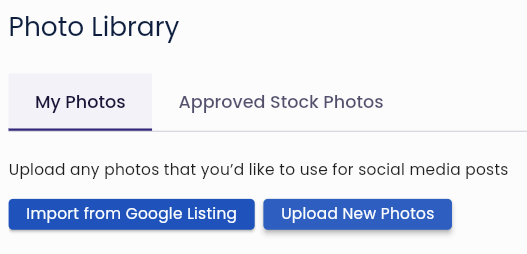
Click “Upload New Photos” to add images from your device. Add short descriptions to make them easier to find and use in the future.
Pro tip:
Tagging photos also helps your AI assistant recommend the best images for your posts.
Approving Stock Photos
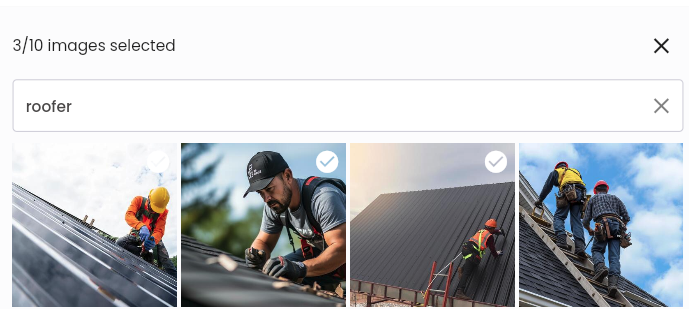
Search the “Stock Photo Library” for images that fit your business. Select up to 10 images at a time and click “Approve” to add them to your library.
Pro tip:
Stock photos can enhance your posts when you don’t have time, or the ability, to take new pictures. They add professionalism and variety but don’t overuse them! A real, high-quality picture is ALWAYS the best choice.
Using Library Photos
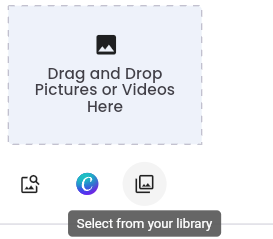
When creating or editing a post, click “Select from Your Library” to access your uploaded and approved images. These will also appear in AI suggestions for quick use.
Need Help?
At Olly Olly, we’re here to help your business succeed. If you’re feeling stuck or need a hand, we’re just a call away. Your account manager is ready to walk you through each step so you can get back to doing what you do best—running your business! Schedule a call with your Account Manager now!
